How do I setup Get Your Guide?
1. Purpose of the integration
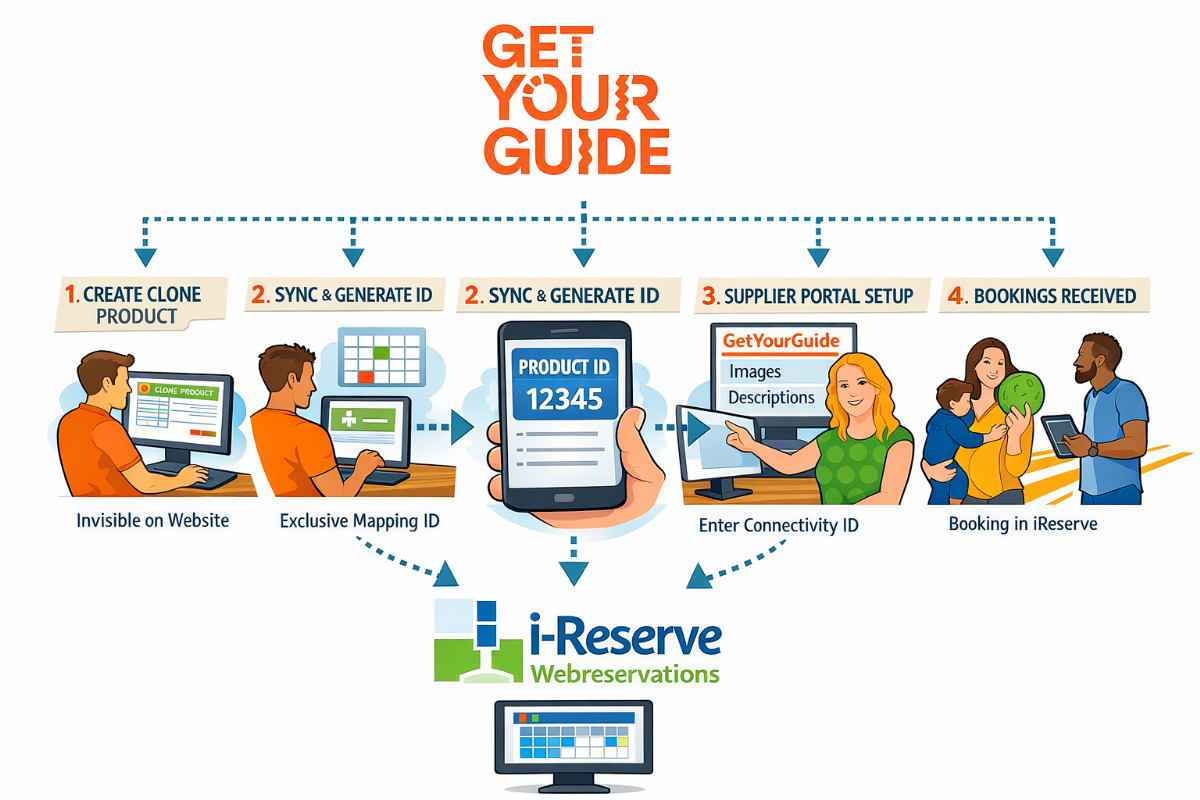
The GetYourGuide integration allows products from iReserve to be published on the GetYourGuide platform. Customers can book via GetYourGuide, while the booking is automatically processed in i-Reserve.
GetYourGuide is responsible for:
-
payment processing,
-
ticket delivery,
-
customer communication.
i-Reserve only receives and registers the booking.
2. Key principle
Never use a regular website product directly for GetYourGuide.
Website products often include workflows such as payments, emails, and ticket delivery. These workflows must not be triggered for GetYourGuide bookings.
Therefore, clone products must be used.
3. Working with clone products
Definition
A clone product is a copy of an existing product that:
-
is not visible on the website;
-
does not trigger workflows;
-
is used exclusively for external sales channels (such as GetYourGuide).
Reason
-
GetYourGuide handles payments and ticket delivery itself.
-
iReserve must not duplicate these processes.
4. Product preparation in i-Reserve
-
Ensure the original product for your own website already exists.
-
Create a clone product of this original product.
-
Configure the clone product as follows:
-
Not visible on the website
-
No workflows (emails, tickets, payments)
-
-
Link the clone product to the original product via resources, so availability and capacity are shared.
5. Creating the GetYourGuide integration
-
In iReserve, go to Integrations.
-
Create a new GetYourGuide integration.
-
Select the appropriate clone product.
-
Enter the minimum duration / lead time of the product:
-
Example: 1 hour = 60 minutes
-
-
Save the integration.
6. Synchronizing the mapping
-
Synchronize the integration mapping.
-
iReserve will generate a unique GetYourGuide Product ID.
-
Copy this Product ID; it is required in the GetYourGuide Supplier Portal.
7. Configuring the product in the GetYourGuide Supplier Portal
-
Log in to the GetYourGuide Supplier Portal.
-
Open the relevant product.
-
Add the following content:
-
Images
-
Descriptions
-
This content is managed exclusively within GetYourGuide, not in iReserve.
-
Create at least one option (mandatory).
-
For the option, enter the previously copied iReserve GetYourGuide Product ID in the Connectivity ID field.
8. Activating the product
-
Set the option and the product to active in the GetYourGuide Supplier Portal.
-
The product is now bookable on GetYourGuide.
9. Result and booking flow
-
Customers book via the GetYourGuide platform.
-
GetYourGuide processes payments and tickets.
-
The booking is automatically created in i-Reserve.
-
No iReserve workflows are triggered.
10. Key considerations
-
Always use a clone product.
-
Ensure no workflows are active.
-
Verify that the Connectivity ID matches exactly.
-
Always test with a trial booking.
Note: In GetYourGuide the integration is named "iReserve" (without dash).


